
Hearvo USB 3.0 HDMI KVM Switch for 2 Computers 1 Monitor
4.0Editor score
4K resolution at 60Hz support
Four USB 3.0 ports included
No external power supply needed
Wired remote switch included
This expert guide compares the top ten laptops and KVM switches for seamless multi-computer workflows to help you choose the best laptop with KVM support today.
Modern professionals often need to switch between multiple computers on a single desk setup. A laptop with KVM support allows you to share monitors and peripherals efficiently without constant cable swapping or complex reconfiguration processes.
We have evaluated ten top-rated KVM switches and docking stations designed to integrate seamlessly with laptops. Our comparison focuses on compatibility, video resolution, data transfer speeds, and ease of use for hybrid work environments.
Each pick highlights specific strengths and ideal use cases for different workflows. Please note that availability and pricing can change frequently so check current listings before making your final purchase decision for your workspace.
4.0Editor score

4.9Editor score
4.6Editor score
The following table provides a detailed side-by-side comparison of all ten KVM switches to help you identify the right features for your laptop setup.


This docking station offers the highest rating among all options evaluated in this guide. It combines a KVM switch with a full docking station capability to support complex multi-display workflows effectively.
We may earn a commission when you buy through this link, at no additional cost to you.
The support for 8K resolution at 60Hz ensures that your visuals remain sharp even with demanding tasks like video editing or data analysis. The shared Ethernet port keeps both computers online which is a rare and useful feature.
While it supports USB-C laptops with DP-Alt, macOS users are limited to mirror mode which restricts extended desktop usage. You must ensure your laptop supports the necessary video output standards before purchasing.
It is the ideal choice for professionals needing a powerful triple-monitor setup that allows fast switching between a laptop and desktop without losing network connectivity or display clarity.
You can connect up to three external displays to a laptop and desktop using this single device for a complete workstation replacement.
Both computers remain connected to the internet simultaneously through a shared 1Gb Ethernet port even when control is switched.
We may earn a commission when you buy through this link, at no additional cost to you.
This KVM switch provides a simple and affordable solution for users who need to share a single monitor between two computers. It supports 4K resolution which is rare for budget options.
We may earn a commission when you buy through this link, at no additional cost to you.
It features four USB 3.0 ports to share peripherals efficiently. The unit does not require an external power supply making it very easy to set up and use anywhere.
The only limitation is that it supports only one monitor so it cannot be used for dual screen workflows. The switching button and remote make it easy to access different systems.
Buyers looking for a cost-effective way to switch between a work laptop and personal PC on one display will find this unit highly reliable and easy to install.
No drivers or software are required to set up this KVM switch making it ready to use right out of the box.
This device offers essential KVM features at a fraction of the cost of more complex docking stations.
We may earn a commission when you buy through this link, at no additional cost to you.
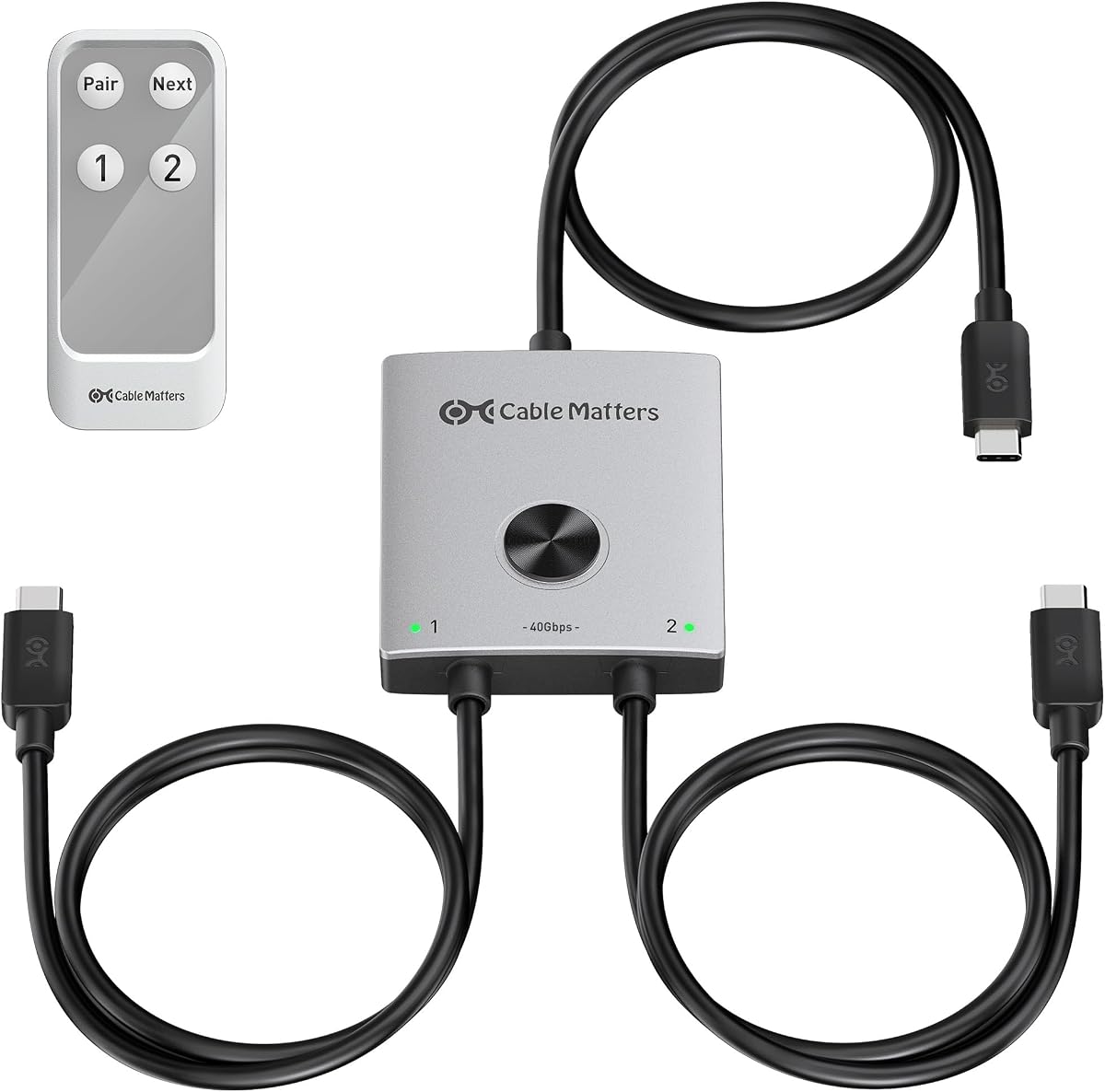
This premium switch is designed for users who need maximum bandwidth and support for Thunderbolt 4 docks. It supports 40Gbps transfer speeds which is essential for high-speed storage devices.
We may earn a commission when you buy through this link, at no additional cost to you.
The RF remote allows you to switch computers without a clear line of sight which is convenient in many office setups. It supports up to 8K resolution for high clarity.
It requires a dock with a detachable host cable so you cannot use it with docks that have built-in cables. This limitation ensures compatibility but reduces choices slightly.
This is the best choice for professionals using high-end Thunderbolt docks and needing the fastest possible data transfer speeds between two powerful laptops.
This KVM switch works seamlessly with Thunderbolt 4 docks to provide full bandwidth for peripherals and displays.
The included RF remote allows switching without physical line of sight to the device for more flexible use.
We may earn a commission when you buy through this link, at no additional cost to you.
This unique KVM switch supports up to four computers using different interface combinations. It is one of the few options that allows four inputs for two monitors simultaneously.
We may earn a commission when you buy through this link, at no additional cost to you.
It supports 4K resolution at 60Hz for both monitors which ensures clear visuals for multiple workstations. The EDID emulator helps maintain stable display settings during switching.
Desktop connections require two video cables per computer which increases cabling complexity on your desk. It is best suited for setups needing more than two computer inputs.
IT administrators or power users who need to switch between multiple desktops and laptops on dual screens will find this hybrid switch incredibly versatile.
This switch allows you to connect and switch between four different computers on two monitors using hybrid inputs.
It supports USB-C DP HDMI and DisplayPort inputs to connect different computer types easily.
We may earn a commission when you buy through this link, at no additional cost to you.
This unit combines a docking station with a KVM switch to expand two laptops to three monitors. It supports dual 4K outputs plus one 1080P output for a versatile setup.
We may earn a commission when you buy through this link, at no additional cost to you.
USB 3.1 Gen2 ports offer fast 10Gbps data transfer speeds for external drives and peripherals. A 100W PD port allows you to charge your laptop while connected.
Windows laptops need to support MST and DP Alt Mode for triple monitor output. macOS users are limited to mirror mode due to system limitations.
If you want a three-monitor workspace and need to switch between two laptops this docking KVM switch offers the best balance of performance and versatility.
Expand your laptop to three external displays for a massive workspace while switching between two systems.
This device replaces a separate docking station providing ports and power delivery in one unit.
We may earn a commission when you buy through this link, at no additional cost to you.
This docking KVM station is optimized for users who need to manage two laptops on a dual-monitor setup. It supports 4K output for both displays and fast switching times.
We may earn a commission when you buy through this link, at no additional cost to you.
It includes USB-C ports that allow you to charge both laptops simultaneously while connected to the dock. This keeps your devices powered during long work sessions.
MacOS users are limited to mirror mode for dual displays. The device is otherwise very compatible with Windows and Linux systems for seamless switching.
For hybrid workers managing a work and personal laptop this dock provides a clutter-free solution to keep your workspace organized and efficient.
Charge both connected laptops simultaneously via USB-C while switching between them for dual productivity.
Switch between laptops in seconds using the EDID emulation and automatic wake-up features.
We may earn a commission when you buy through this link, at no additional cost to you.
This dock supports 8K resolution at 60Hz which is a high-end feature for detailed visual work. It allows for three monitors to be shared between two computers effectively.
We may earn a commission when you buy through this link, at no additional cost to you.
The shared Ethernet connection keeps both computers online simultaneously so background tasks can run uninterrupted. USB 3.2 ports provide fast data transfer for storage devices.
You must ensure your monitors and laptop support 8K output to use this feature. Most standard setups will use 4K which is also supported flawlessly.
This is the best option for users who want high resolution support and need to share a triple monitor setup without network interruption.
Enjoy sharp visuals with support for 8K resolution at 60Hz for professional displays.
Both computers stay online via a shared network port to maintain connectivity during switching.
We may earn a commission when you buy through this link, at no additional cost to you.
This docking station provides a shared Ethernet port for two laptops which is rare in KVM switches. It supports 4K output on two monitors for high clarity.
We may earn a commission when you buy through this link, at no additional cost to you.
USB-C ports support data transfer and charging up to 100W. This means you can reduce the number of cables on your desk significantly.
Switching is fast with automatic wake-up features. You must use original adapters for charging as reverse charging has specific requirements.
If you need network access for two laptops on one desk this device offers a compact solution to keep your workspace tidy and connected.
Two laptops can access the internet simultaneously via a single shared Ethernet port.
Connect laptops via USB-C to transfer data and charge simultaneously for a clean setup.
We may earn a commission when you buy through this link, at no additional cost to you.
This unit is built for high-resolution workflows using DisplayPort connections. It supports 8K resolution which is ideal for detailed design work.
We may earn a commission when you buy through this link, at no additional cost to you.
It includes a wireless controller to switch computers without reaching for the box. USB 3.0 ports allow you to share peripherals easily.
You must use specific DP 1.4 cables to achieve high resolution and the device requires an external power supply. This adds to the cabling but ensures stability.
Gaming and design professionals who need 8K or high refresh rates will appreciate this DisplayPort focused KVM switch.
Supports 4K at 120Hz for smooth gaming and fluid motion on compatible displays.
Switch between computers using a wireless controller for a cleaner desktop experience.
We may earn a commission when you buy through this link, at no additional cost to you.
This switch is designed for USB-C laptops and docks with short pigtail cables. It supports 20Gbps speeds which are fast enough for most external drives.
We may earn a commission when you buy through this link, at no additional cost to you.
It includes a 140W PD charging port so you can keep your laptop powered while switching. The compact design makes it easy to carry with a laptop.
It has specific limitations regarding dock pigtail length and does not work with Dell docks. You must check your dock type before buying.
For portable users who need a fast USB-C switch for travel this unit offers excellent performance in a small package.
Transfer files at up to 20Gbps speeds for efficient work with external storage.
Compact size makes it easy to carry between different workspaces.
We may earn a commission when you buy through this link, at no additional cost to you.
Selecting the right KVM switch requires evaluating video output capabilities data transfer speeds and compatibility with your specific laptop models.
Check that the KVM switch supports the resolution and refresh rate of your monitors. For professional work you may need 4K or 8K at 60Hz while gaming setups might require high refresh rates like 144Hz.
Always verify the maximum output specs to ensure your visuals remain smooth and clear during use.
Many modern laptops rely on USB-C for video and data so ensure the KVM switch supports DP-Alt mode or Thunderbolt 4 protocols. Some docks require specific cable types to function correctly.
Confirm your laptop supports video over USB-C before purchasing a USB-C focused KVM switch.
Decide how many monitors and computers you need to switch between. Some switches support two computers on one monitor while others support four computers on two monitors or more.
Choose a model that matches your exact display and computer count to avoid unnecessary costs.
Many docking KVM switches offer Power Delivery to charge your laptop through the connection. This reduces cable clutter by allowing you to power the laptop via the dock.
Ensure the power output wattage matches your laptop charger requirements for optimal performance.
Fast switching is essential for productivity. Look for switches with hotkeys remote controls or front panel buttons that allow you to change computers in seconds.
EDID emulation features can also help maintain stable display settings when switching between systems.
Most KVM switches work with Windows and Linux but macOS has specific limitations such as mirroring only for triple monitor setups. Always check the manufacturer notes for your operating system.
If you use multiple operating systems verify that the device supports all of them.
USB 3.0 USB 3.1 and USB-C ports offer different speeds. For external drives and data-heavy workflows look for 10Gbps or higher speeds to avoid bottlenecks.
Higher transfer speeds improve file copying and peripheral responsiveness significantly.
Some advanced KVM docks include a shared Ethernet port that keeps both computers online simultaneously. This is useful if you need to run background tasks on an unselected computer.
Verify if shared internet access is required for your workflow before buying.
Begin by connecting your laptop and desktop to the KVM switch using the appropriate video and USB cables. Ensure all devices are powered off before connecting to avoid short circuits.
Install any necessary drivers or software if required though most devices support plug and play functionality. Test the switching button to confirm it changes the display correctly.
Keep your KVM switch in a well-ventilated area to prevent overheating especially if you have a high-power model. Periodically check cables for wear to ensure stable connections over time.
A laptop with KVM support refers to a setup where a laptop connects to a KVM switch allowing you to share peripherals and monitors with another computer. This eliminates the need to constantly swap cables.
Most KVM switches are plug and play and do not require drivers. However some advanced docking models may recommend software for specific OS features but basic functions work without them.
Yes but macOS has limitations. Many KVM switches only support mirror mode for multiple displays on Macs due to MST restrictions so verify this before purchasing if you use a Mac.
Most modern switches support 4K at 60Hz. Premium models can support 8K at 60Hz or high refresh rates like 144Hz depending on the HDMI or DisplayPort version used.
Some high-speed switches support Thunderbolt 4 docks but they often require detachable host cables. Always check compatibility with your specific dock model before buying a KVM switch.
Basic KVM switches connect two computers to one monitor. Advanced models support four computers on two monitors or more so choose based on the number of systems you need to switch.
We have reviewed ten KVM switches ranging from budget options to premium docks for high-end workflows. Each offers unique features like high resolution support shared network and fast data transfer.
Prioritize your needs such as monitor count and laptop compatibility to select the best unit. For most users a dock with Power Delivery and reliable switching will simplify daily work.
Always check current availability and listings as features can change. Selecting the right switch now will ensure a smooth efficient multi-computer workspace for years to come.