
Acer 4-in-1 USB C Hub
4.2Editor score
Dual HDMI 4K 60Hz
100W power delivery
Includes USB-A data port
Compare the top dual HDMI monitor adapters for 2026 to find the best dual display solution for your laptop or desktop setup today.
Finding the right dual HDMI monitor adapter can transform your workflow by expanding your screen real estate significantly. Whether you work from home or need a robust office setup, choosing the correct adapter ensures smooth performance and reliable connectivity for your devices.
We evaluated ten top-rated adapters based on compatibility, resolution support, build quality, and user feedback. Our analysis focuses on USB-C and USB-A options that support extended displays, ensuring you can multitask efficiently without sacrificing visual clarity or system stability.
Each pick below highlights key features, pros, and cons to help you decide quickly. Prices and availability change often so verify current details before purchasing to ensure you get the best value for your specific computing needs and monitor configurations.
4.2Editor score
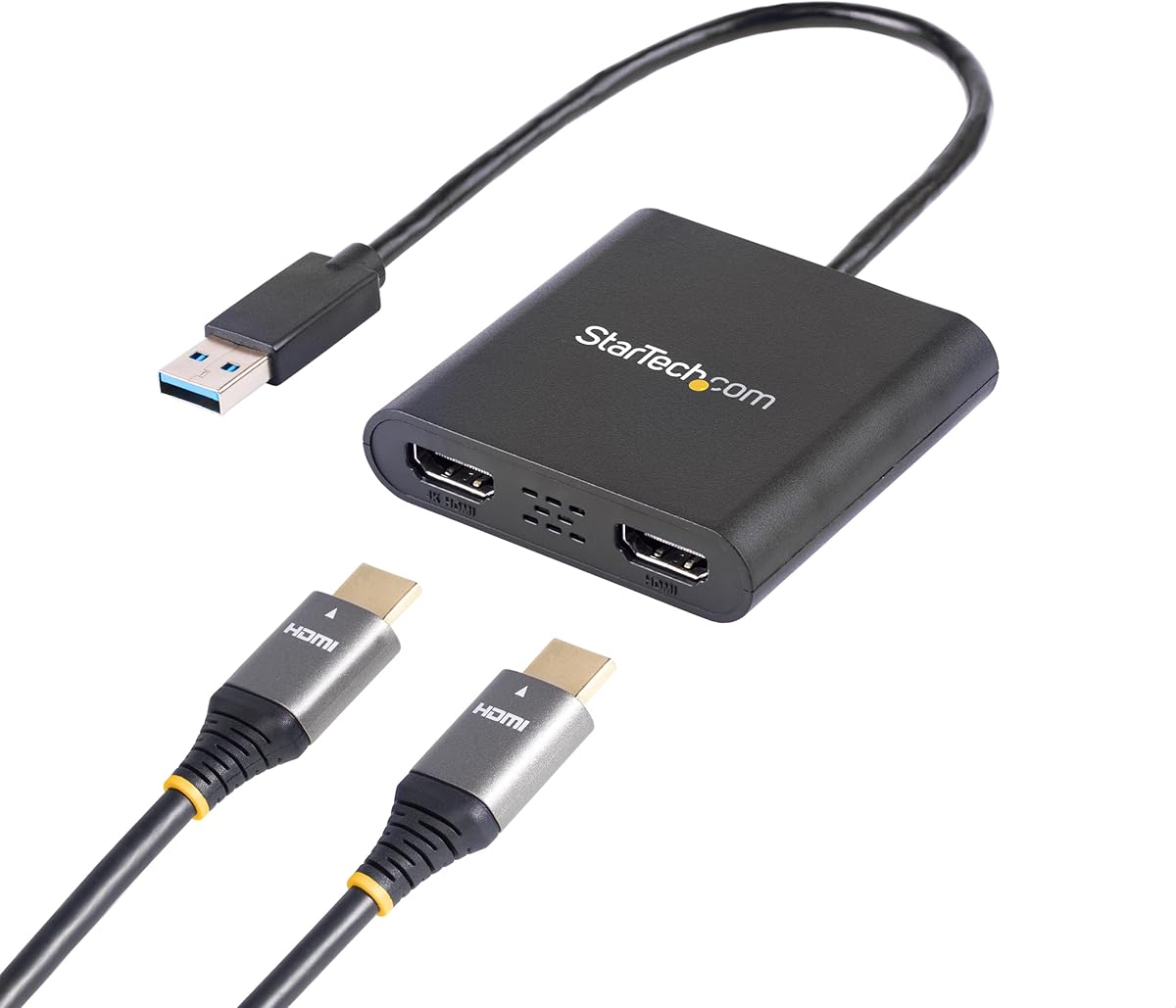
4.5Editor score

4.4Editor score
This comparison table details the core specifications of each adapter so you can see differences in resolution support, input types, and additional ports at a glance.
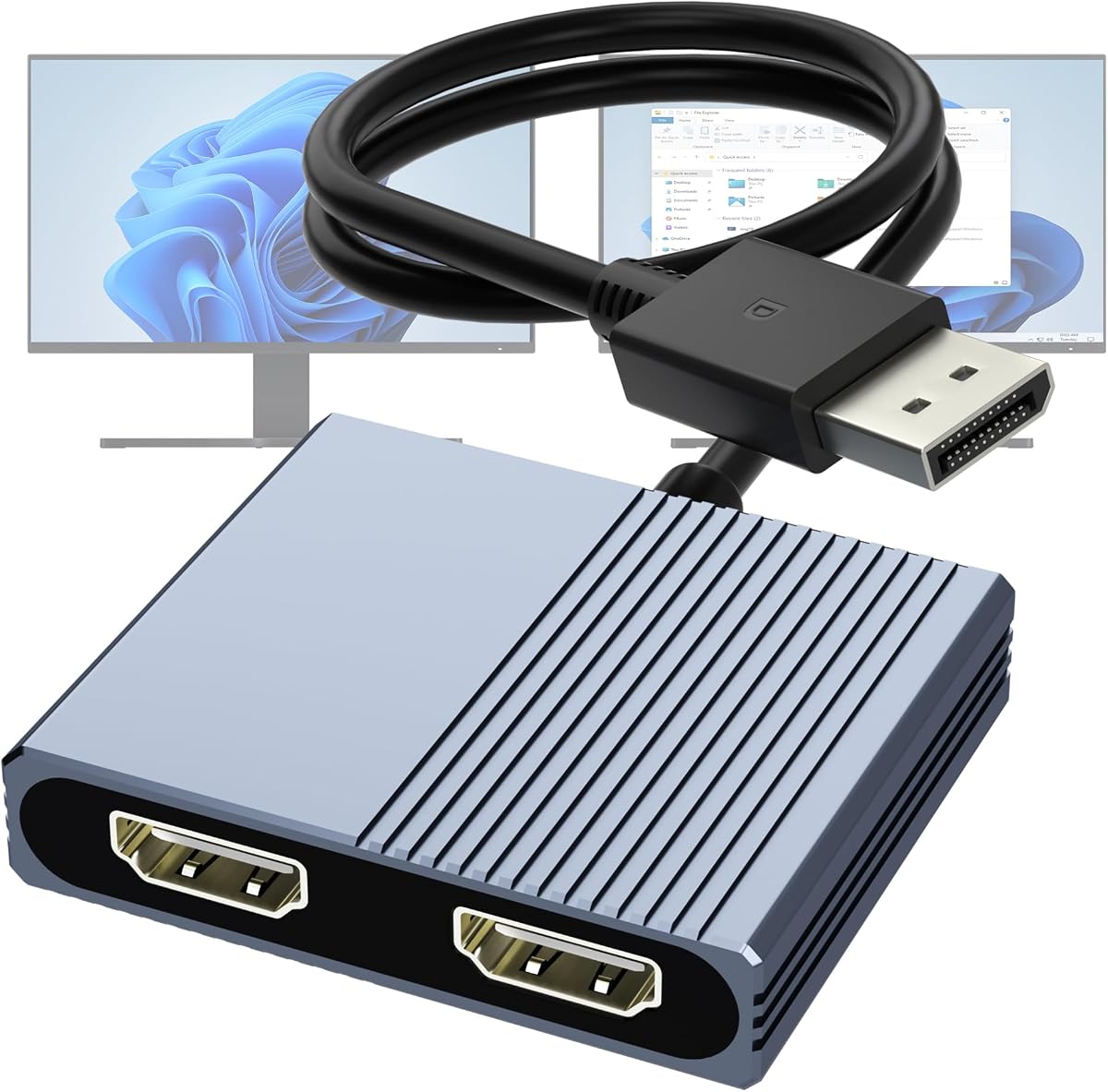


This adapter is a top choice for Windows users needing a reliable dual monitor setup via USB-A. It offers clear visuals and stable connections suitable for office work and general productivity tasks.
We may earn a commission when you buy through this link, at no additional cost to you.
Its standout feature is the ability to extend your desktop to two HDMI monitors easily. The 4K support ensures sharp text and vibrant images which helps reduce eye strain during long working hours.
However you must accept that it works only with Windows and requires installing drivers with admin rights. This can be a hurdle in corporate environments where permissions are tightly controlled.
Choose this adapter if you run Windows and need a robust solution backed by strong IT support and warranty options.
Extend your workspace seamlessly to improve multitasking without needing expensive docking stations.
Built specifically for IT professionals with lifetime technical assistance available when needed.
We may earn a commission when you buy through this link, at no additional cost to you.
The Acer hub delivers great performance for its price point offering dual 4K660Hz output on compatible devices. It is ideal for users who need a simple and affordable dual monitor solution with charging capabilities.
We may earn a commission when you buy through this link, at no additional cost to you.
Key strengths include the high refresh rate support which makes video playback smooth and the added USB-A port for peripheral connections. The power delivery port also ensures your laptop stays charged during intensive work sessions.
Be aware that macOS users are limited to mirroring mode and the included cable is very short so you may need to buy an extension for your desk setup comfortably.
This product is perfect for budget conscious buyers on Windows who want crisp displays and reliable power without overspending on extra ports.
Stay powered up with a 100W port that handles high demand laptops effectively.
Connect peripherals easily while maintaining full screen resolution on two monitors.
We may earn a commission when you buy through this link, at no additional cost to you.
This docking station offers an impressive array of ports that transform a single USB-C port into a full workstation hub. It supports dual monitors with high refresh rates while handling data and power simultaneously.
We may earn a commission when you buy through this link, at no additional cost to you.
The inclusion of SD card slots and multiple USB ports makes it versatile for content creators and office users who juggle multiple devices. Its design includes temperature control to maintain stable performance even under heavy loads.
However it requires a full featured USB-C or Thunderbolt port and macOS users cannot extend screens with it so it works best for Windows laptops needing a comprehensive dock.
Pick this dock if you want a premium all-in-one solution that reduces cable clutter and supports demanding workflows effectively.
Turn one port into a full suite of connections for all your work gear.
Easily copy files from cameras and drives with fast card readers.
We may earn a commission when you buy through this link, at no additional cost to you.
This adapter is designed for desktop PCs and laptops with dedicated graphics cards offering a clean way to add two HDMI monitors via DisplayPort. It leverages MST technology to extend your desktop without software complexity.
We may earn a commission when you buy through this link, at no additional cost to you.
Users benefit from smooth 4K 60Hz output and a robust build quality that includes shielding for signal stability. The plug and play design means no driver headaches for those with supported GPUs.
Keep in mind you need a DP 1.4 port and an external USB power cable to run it which adds some bulk to your desktop setup.
Ideal for desktop users with strong graphics cards who want reliable extended display performance without extra software.
Switch between mirror and extend modes easily depending on your current task.
Works specifically with high-end GPUs to ensure maximum visual fidelity.
We may earn a commission when you buy through this link, at no additional cost to you.
This adapter works with both Windows and macOS systems making it a flexible choice for mixed environments. It supports extended displays through a single USB connection and delivers crisp 2K resolution performance.
We may earn a commission when you buy through this link, at no additional cost to you.
It features a robust design that handles productivity apps well and includes detailed driver support for stability. The ability to choose between USB-C or USB-A inputs adds convenience for older and newer devices.
The main trade-off is the requirement to install drivers which may take time and limits use for gaming or media streaming protected content.
Choose this if you need a versatile bridge for different operating systems and prioritize stability over gaming performance.
Connect Windows and Mac devices to your monitors without compatibility hassles.
Optimized for work apps to ensure smooth typing and browsing experiences.
We may earn a commission when you buy through this link, at no additional cost to you.
OREI offers a solid extension adapter that works well for users with recent Intel processors needing an extra screen. It supports both Windows and Chrome OS and offers dual HDMI outputs for improved multitasking setups.
We may earn a commission when you buy through this link, at no additional cost to you.
The device includes both USB-A and USB-C connectors so you can adapt it to various laptops. It allows extended displays which is key for those needing a second window for reference or tools.
However it requires a specific processor and driver installation which adds complexity and might not work on older or low-power machines.
This product is best for desktop users with powerful CPUs who need a cost-effective way to add a second monitor.
Works best on systems with strong processing power to handle extra display load.
Choose between standard USB or USB-C based on your available ports.
We may earn a commission when you buy through this link, at no additional cost to you.
This splitter is unique because it mirrors content across two screens instead of extending the desktop. It is ideal for presentations or retail displays where identical visuals are needed on multiple monitors.
We may earn a commission when you buy through this link, at no additional cost to you.
It works directly from an HDMI source and requires no drivers or complex settings. The compact design and affordable price make it accessible for anyone needing a simple visual solution.
The main downside is that it cannot create an extended workspace which limits its use for productivity tasks that require separate content on each screen.
Select this splitter if you need to duplicate a signal for two displays quickly without spending much money or time.
Plug in and start mirroring instantly without configuring drivers.
Perfect for showing the same content to an audience on multiple screens.
We may earn a commission when you buy through this link, at no additional cost to you.
Designed for high-speed Thunderbolt ports this hub supports dual 4K screens at 60Hz ensuring crisp visuals for professional work. It also includes a fast USB-A port and powerful charging to keep devices ready.
We may earn a commission when you buy through this link, at no additional cost to you.
The build is sleek and portable which makes it great for mobile professionals who need reliable multi-monitor setups on the go. It supports high bandwidth needs which prevents lag during video calls.
Mac users must note that only mirroring is supported and you need proper HDMI 2.0 cables for full resolution to work correctly.
This hub is perfect for users with Thunderbolt laptops who want premium display performance and extra connectivity in one small unit.
Transfer large files quickly while using your monitors without lag.
Keep your laptop charged even while driving dual displays.
We may earn a commission when you buy through this link, at no additional cost to you.
This adapter is a strong choice for desktop PCs with NVIDIA or AMD graphics cards needing to extend their screens. It provides stable dual 4K outputs without requiring drivers so you can start using it quickly.
We may earn a commission when you buy through this link, at no additional cost to you.
The aluminum housing helps with heat dissipation and the gold plated connectors ensure a secure and long lasting connection. It supports both mirror and extended modes for flexibility in how you use your screens.
Keep in mind you must have a dedicated DisplayPort output and it does not provide USB passthrough which limits its use for hubs.
Pick this adapter if you have a powerful PC and want reliable dual high-resolution performance for work or creative projects.
The metal case keeps the device cool during long sessions.
Gold plating ensures better signal integrity over time.
We may earn a commission when you buy through this link, at no additional cost to you.
This hub is built to be small and lightweight making it easy to carry for travel. It offers dual 4K 60Hz displays and includes multiple USB-A ports for connecting basic peripherals easily.
We may earn a commission when you buy through this link, at no additional cost to you.
The slim profile fits into bags without adding bulk and it works on most modern laptops with DisplayPort Alt Mode. It is affordable and delivers strong visual quality for general office work.
Be aware the USB-A ports are USB 2.0 speed and macOS supports only limited modes so it is best for basic connectivity needs.
Use this hub if you need a portable and budget friendly solution to add screens and a few ports on the go.
Take your dual screen setup anywhere without a heavy dock.
Get dual 4K support without spending a lot on extra features.
We may earn a commission when you buy through this link, at no additional cost to you.
Selecting the right adapter requires understanding your device capabilities and specific display needs to avoid compatibility issues.
The first step is identifying whether your laptop or desktop has a USB-A, USB-C, or DisplayPort output. Each adapter type requires a specific connection and some need DisplayPort Alt Mode or Thunderbolt support to function.
Always check your device manual to confirm which port supports video output before purchasing an adapter.
Windows, macOS, and ChromeOS handle multi-monitor setups differently. Some adapters support full screen extension on Windows but only mirroring on macOS due to system limitations.
Choose an adapter that explicitly states support for your operating system to ensure you get the desired screen arrangement.
Determine if you need 4K resolution and how smooth the display should be. Higher resolutions like 4K require more bandwidth and may limit refresh rates depending on the adapter specs.
Look for adapters that match your monitor capabilities such as 4K at 60Hz for smooth video or text work.
Some adapters need driver installations to work while others plug and play. Driver based adapters often offer better compatibility but require admin rights to install.
Pick plug and play models if you cannot install software or need quick setup.
Many hubs include extra ports like USB-A data ports or power delivery charging. These features reduce clutter by combining charging and display into one connection.
Consider whether you need a card reader or extra USB ports to maximize the value of your purchase.
A durable adapter made from metal or reinforced plastics will last longer and dissipate heat better. This helps prevent signal drops or overheating during extended use.
Check reviews for mentions of heat management and cable durability before finalizing your choice.
Prices vary significantly from basic splitters to premium docking stations. Determine your budget early to focus on models that offer essential features without unnecessary extras.
Balance cost against the features you truly need to avoid overspending on unused ports.
Adapters are electronic devices that can fail. A longer warranty period like three years indicates confidence from the manufacturer and offers protection.
Prioritize brands with good technical support to resolve issues quickly if they arise.
Start by connecting your host device to the adapter using the correct cable type and then plug HDMI cables from the adapter into your monitors. Ensure all connections are snug to maintain signal stability.
For USB-C hubs make sure your laptop supports video output over USB-C otherwise the display will not activate. Some devices also require external power to handle dual displays at high resolutions.
Keep the adapter clean by wiping it with a dry cloth to prevent dust buildup. Avoid bending the cables sharply when storing and store in a dry place to extend the lifespan of your device.
Most USB adapters support macOS but often limit you to mirroring mode where both screens show the same image. To get extended displays on Mac you may need a Thunderbolt dock or specific adapters that work with DisplayPort Alt Mode.
Some adapters plug and play without drivers while others require installing specific software like Silicon Motion drivers. Check the product description before buying to avoid installation issues especially on restricted systems.
This could be due to incompatible ports missing drivers or insufficient power. Ensure your device supports video output over the connection used and try restarting the computer after connecting the adapter.
Most USB based adapters are designed for productivity and not gaming. They may have latency issues or lower refresh rates so dedicated graphics card connections are better for gaming setups.
It is a feature of USB-C ports that allows video signal output similar to a DisplayPort. Without this feature your USB-C port will only handle data and charging so the adapter will not work.
Most adapters in this guide support dual monitors only. To add a third screen you will need additional ports or a more advanced docking station with triple output support.
We reviewed ten top adapters ranging from simple USB splitters to advanced docking stations to help you find the perfect fit for your setup.
Prioritize compatibility and resolution needs over extra features since the right display experience matters most for productivity and comfort.
Check current availability and pricing before buying since deals and stock change frequently on online retailers.