
WAVLINK USB 3.0/USB C to HDMI Universal Video Adapter
4.4Editor score
Supports Up to Six Monitors
Universal USB 3.0 Compatibility
Affordable Multi-Monitor Solution
This guide compares the top ten Displaylink Adapter models for Mac and Windows users seeking dual monitor setups with verified specs and user ratings.
Finding the right Displaylink Adapter can transform your laptop into a powerful workstation capable of supporting multiple external monitors. Whether you need a docking solution for productivity or a portable hub for travel, the right adapter ensures seamless video output and reliable performance across different operating systems.
We evaluated ten leading Displaylink Adapter models based on their connectivity options, display support, build quality, and compatibility with modern laptops. Our comparison focuses on key features like 4K output, USB charging capabilities, and driver requirements to help you choose the best fit for your workflow needs.
Each pick in this list highlights specific strengths such as budget-friendly pricing, premium build materials, or advanced multi-monitor support. Remember that product availability and pricing can change frequently, so verify current details before making your final purchase decision for your specific setup requirements.
4.4Editor score

4.5Editor score

4.8Editor score
This side-by-side comparison details the key specifications and capabilities of each Displaylink Adapter model to help you identify the best fit for your specific display and connectivity needs.



This ACASIS USB C to Dual HDMI DisplayLink Adapter stands out as a powerful solution for expanding your display capabilities. With a high rating and robust feature set, it transforms a single USB-C port into a dual-monitor workstation capable of supporting 4K@60Hz displays.
We may earn a commission when you buy through this link, at no additional cost to you.
The standout feature is its ability to drive two crystal-clear 4K monitors simultaneously via DisplayLink technology. This is especially useful for Mac users with M1 or M2 chips who are typically limited to one external display. Additionally, the 100W PD fast charging port keeps your laptop powered up during long sessions.
While it offers great functionality, the requirement to install specific drivers is a necessary step before use. Furthermore, it is not designed for gaming or HDCP-protected content, which limits its utility for streaming entertainment on external screens. These trade-offs are acceptable for productivity-focused workflows.
If you need a reliable and portable dual-monitor setup for office work or coding, this adapter delivers excellent value. It combines high-resolution support with practical connectivity options in a sleek design. We recommend it for professionals who prioritize screen real estate and laptop charging convenience.
The dual 4K@60Hz support allows for expansive multitasking environments without compromising visual clarity.
The included 100W PD port ensures your device stays charged while you utilize the full display capacity.
We may earn a commission when you buy through this link, at no additional cost to you.
The WAVLINK USB 3.0 or USB C to Dual HDMI Splitter is designed to maximize productivity by offering dual 4K@60Hz simultaneous output from a single port. It is an excellent choice for users who need to expand their workspace without complex setups.
We may earn a commission when you buy through this link, at no additional cost to you.
Its hybrid 2-in-1 USB cable allows for easy connectivity to both USB-C and USB-A ports, making it versatile for various devices. The adapter supports both Windows and macOS systems, ensuring broad compatibility for modern laptops and desktops. It is ideal for web browsing and office applications.
Users should note that driver installation is required for this adapter to function correctly. Additionally, it does not support HDCP-protected content, meaning streaming services like Netflix will not work on the external displays. These limitations are typical for DisplayLink-based solutions but should be considered.
For those seeking a reliable dual monitor setup at a competitive price point, this WAVLINK adapter provides solid performance. Its hybrid cable design adds convenience for travelers who switch between different types of computers. We recommend it for general office productivity and multitasking.
The hybrid cable ensures you can connect to both legacy USB-A and modern USB-C ports seamlessly.
The manufacturer offers a robust warranty period that provides peace of mind for long-term use.
We may earn a commission when you buy through this link, at no additional cost to you.
This WAVLINK USB 3.0/USB C to HDMI Universal Video Adapter is a budget-friendly option that supports multiple external monitors up to a total of six. It is an ideal choice for users who need simple display expansion without spending a premium price.
We may earn a commission when you buy through this link, at no additional cost to you.
The adapter allows you to mirror or extend your screen effortlessly using a single USB 3.0 or USB-C port. It includes audio ports for convenient microphone and earphone connections. Its wide system support covers Windows, macOS, and ChromeOS, making it versatile for mixed environments.
The resolution caps at 2560×1440@50Hz or 2048×1152@60Hz, which is lower than the 4K options available in this category. Additionally, like most DisplayLink products, it requires driver installation. However, the cost savings make it a strong contender for basic productivity needs.
If you are looking for the most economical way to add multiple screens to your workspace, this adapter is a practical solution. It handles office tasks and web browsing well without breaking the bank. We recommend it for users on a tight budget who need reliable multi-monitor support.
The ability to support up to six monitors allows for highly flexible and scalable workstation setups.
The inclusion of external microphone and earphone ports simplifies audio management for calls.
We may earn a commission when you buy through this link, at no additional cost to you.
The Plugable USB C to HDMI Adapter is specifically recognized for its ability to break the single external display limit on MacBooks like the Air M1 through M5. It allows users to connect two 4K 60Hz monitors simultaneously, providing a true triple-screen setup.
We may earn a commission when you buy through this link, at no additional cost to you.
This adapter is designed for seamless compatibility with macOS, Windows, and ChromeOS systems. It utilizes DisplayLink technology to extend screens without relying on the laptop's native video output. The product has been recognized by MacWorld, highlighting its reliability for Mac users.
Mac users must install the DisplayLink Manager and allow specific display permissions during setup. While this is an extra step, it ensures stable performance across different operating systems. The lack of HDCP support means it is best suited for productivity rather than media consumption.
For MacBook Air users who need more than one external monitor for work, this adapter is a top-tier choice. Its lifetime support and proven track record offer confidence in its long-term performance. We recommend it for professionals who need consistent dual display functionality on Mac.
This adapter specifically addresses the limitation of base MacBook Air models supporting only one external screen.
Plugable provides lifetime access to their North American team of connectivity experts for assistance.
We may earn a commission when you buy through this link, at no additional cost to you.
This Plugable adapter stands out for its flexible connectivity, supporting both USB-C and USB-A connections from a single unit. It drives two external HDMI displays at up to 4K 60Hz, making it a powerful tool for multitasking and office applications.
We may earn a commission when you buy through this link, at no additional cost to you.
The integrated USB-A adapter stays with the device, allowing you to switch between USB-C and USB-A computers easily. This eliminates the need to carry extra accessories. The built-in DL-6950 chipset ensures stable video output without requiring an external GPU.
Windows users will need to install the DisplayLink driver for optimal performance. macOS is not recommended for this specific model, making it more ideal for Windows environments. However, its plug-and-play nature on ChromeOS simplifies deployment in educational settings.
For users who frequently switch between different types of laptops or need a versatile docking solution, this adapter is an excellent choice. Its high rating and robust build quality make it a trusted option for daily productivity. We recommend it for hybrid workspaces with varied devices.
The included USB-A adapter makes switching between port types effortless without losing accessories.
Powered by the DL-6950 chipset to ensure stable dual 4K performance without overheating.
We may earn a commission when you buy through this link, at no additional cost to you.
This StarTech USB-A DisplayLink Mini Dock is designed for portability and basic connectivity needs. It offers dual DisplayPort outputs at 4K 60Hz and includes a Gigabit Ethernet port for stable network connectivity without needing additional adapters.
We may earn a commission when you buy through this link, at no additional cost to you.
The dock is compact and bus-powered, making it easy to carry and use in small office or home workspaces. It features a short attached cable that reduces port strain on devices like Surface Pros. Its setup is straightforward and supports both Windows and Chrome OS.
While it includes valuable network connectivity, the USB-A interface may limit speed compared to newer USB-C standards. Additionally, it uses DisplayPort outputs rather than HDMI, so you will need appropriate cables or adapters for HDMI monitors. This limits its universal plug-and-play convenience.
For users who specifically need network access and dual displays from a USB-A port, this mini dock is highly effective. Its small form factor makes it ideal for travel or desks with limited space. We recommend it for professionals who need a reliable network and display extension.
The built-in GbE port provides a wired internet connection without occupying extra ports on your laptop.
The compact mini dock form factor ensures it fits easily on crowded work surfaces.
We may earn a commission when you buy through this link, at no additional cost to you.
The ACASIS Dual DP DisplayLink Adapter offers premium build quality and robust connectivity for Mac users seeking dual display support. It bypasses macOS multi-screen restrictions effectively, delivering stable video signals with true extended desktop modes for designers and power users.
We may earn a commission when you buy through this link, at no additional cost to you.
This adapter features two DP ports capable of 4K@60Hz resolution, alongside a 100W PD charging port to keep your laptop powered. The inclusion of three USB-A ports allows for connecting essential peripherals like keyboards and mice without needing a separate hub. It is housed in a durable aluminum alloy.
Users must ensure they have DP-to-HDMI cables if their monitors only have HDMI ports, as this adapter outputs DisplayPort directly. While the build quality is top-tier, the price reflects its premium positioning. It also requires driver installation which is standard for DisplayLink products.
For professionals who value stable performance and build quality in their docking solutions, this adapter is a strong investment. It effectively transforms a MacBook into a full workstation with extensive connectivity. We recommend it for designers and users who need reliable high-resolution displays.
The high-grade aluminum alloy construction ensures optimal heat dissipation and scratch resistance.
With PD charging and USB-A ports included, it acts as a complete hub for your desk setup.
We may earn a commission when you buy through this link, at no additional cost to you.
This WAVLINK USB 3.0 & USB C to Dual HDMI Adapter is designed with advanced security features that make it suitable for corporate environments. It offers dual 4K@60Hz output and includes encrypted DL-chip technology to safeguard sensitive information during operations.
We may earn a commission when you buy through this link, at no additional cost to you.
The adapter supports a wide range of systems including Windows, macOS, and ChromeOS, ensuring it fits into diverse IT infrastructures. It transforms any laptop into a powerful dual-display workstation effortlessly. The high user rating reflects its reliability and performance in real-world settings.
However, it does not support Linux, Unix, or iOS devices, which limits its utility for specific users. Additionally, driver installation is required for functionality. These constraints are typical for DisplayLink solutions but should be noted if you need broad OS support.
For businesses looking to deploy secure and high-performance display solutions across their teams, this adapter offers the necessary security and reliability. Its robust performance supports dynamic presentations and data analysis effectively. We recommend it for professional corporate office setups.
The encrypted DL-chip technology ensures data protection suitable for secure corporate environments.
Crystal-clear dual 4K@60Hz visuals enhance presentations and financial data analysis.
We may earn a commission when you buy through this link, at no additional cost to you.
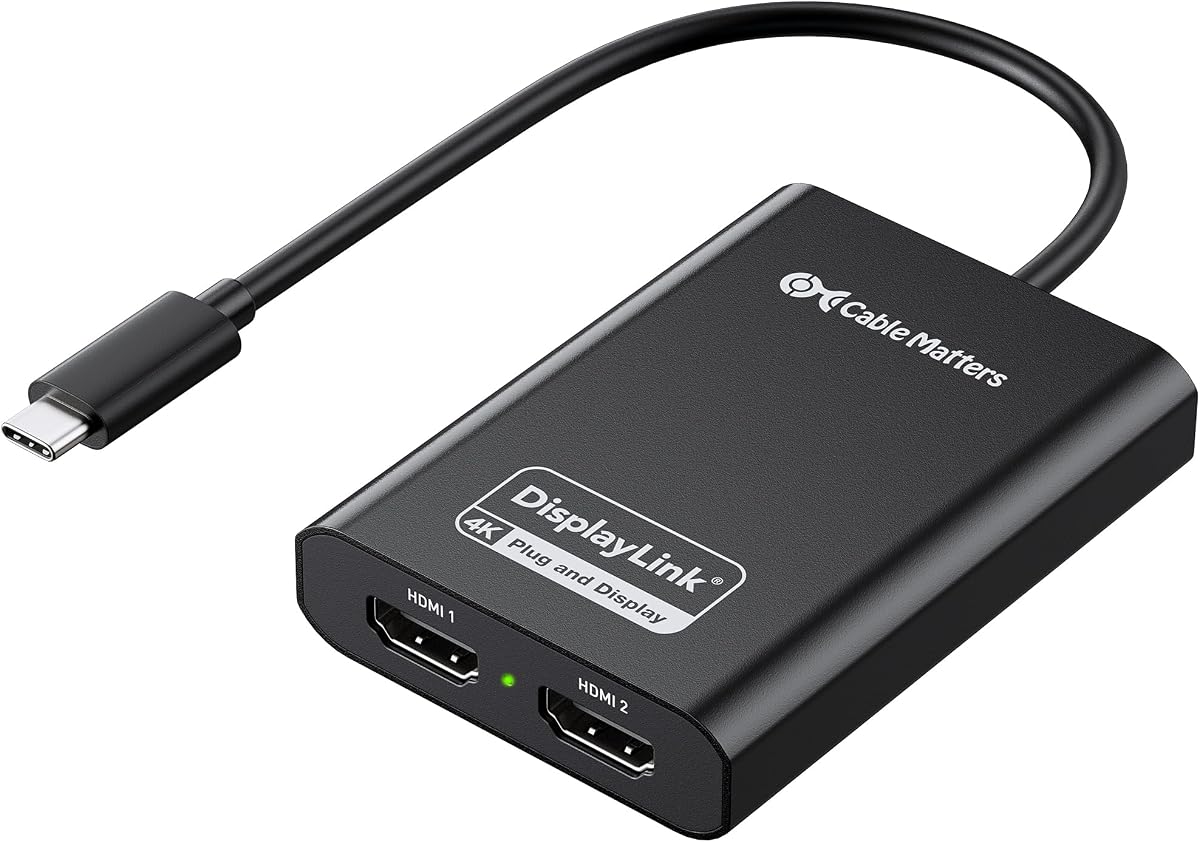
The Cable Matters USB C to Dual HDMI Adapter is DisplayLink certified, ensuring it meets specific performance and quality standards. It delivers dual 4K@60Hz performance, allowing for true multitasking on macOS and Windows systems by breaking the single display limit.
We may earn a commission when you buy through this link, at no additional cost to you.
This adapter turns one USB-C port into two HDMI outputs, perfect for when other ports are occupied. It supports a wide range of laptops including Dell XPS, HP Spectre, and Lenovo ThinkPad. The durable aluminum housing helps maintain stable performance during extended use.
Mac users must install the DisplayLink Manager and allow Screen Recording permission for proper functionality. Additionally, performance may vary based on CPU and USB bandwidth. While it offers strong capabilities, these setup steps and hardware dependencies are important considerations.
For users seeking a certified solution that ensures compatibility and performance, this adapter is a solid option. It provides a real dual-monitor workspace for creative workflows and productivity. We recommend it for professionals who need reliable display expansion from a single port.
DisplayLink certification guarantees that the adapter meets specific quality and performance standards.
The premium aluminum alloy enclosure efficiently dissipates heat to prevent performance throttling.
We may earn a commission when you buy through this link, at no additional cost to you.
The Sonnet DisplayLink Dual 4K HDMI Adapter is designed to connect two 4K displays to a single Thunderbolt or USB port on Mac and Windows computers. It supports higher refresh rates and audio, providing a versatile solution for expanding your work and play area.
We may earn a commission when you buy through this link, at no additional cost to you.
This adapter is perfect for M1 or M2 Mac Notebooks, enabling users to open multiple applications across different displays. It includes a USB-A female to USB-C male adapter for flexibility. It also supports 1080P displays at higher refresh rates like 144Hz.
While it offers great connectivity, driver installation is necessary for the DisplayLink functionality to work correctly. Additionally, it is limited to HDMI outputs which may not suit users with DisplayPort monitors. These factors should be weighed based on your specific hardware needs.
For Mac users who need to double their screen real estate efficiently, this adapter provides reliable performance. Its ability to support higher refresh rates on lower resolutions adds versatility. We recommend it for general productivity and casual media use on M-series Macs.
Support for 144Hz on lower resolutions offers smooth visuals for non-gaming tasks.
The included USB-C adapter ensures compatibility with both Thunderbolt and standard USB 3 ports.
We may earn a commission when you buy through this link, at no additional cost to you.
Selecting the right Displaylink Adapter involves considering display resolution, connectivity ports, driver requirements, and compatibility with your specific operating system and laptop model.
Most modern Displaylink Adapters support dual 4K outputs at 60Hz, which is essential for sharp text and smooth scrolling. Check the maximum supported resolution per port to ensure it matches your monitor capabilities. Some adapters may cap resolution at 1440p or lower depending on bandwidth and chipset.
Look for adapters that offer versatile connectivity such as USB-C, USB-A, or hybrid cables. A USB-C port with Power Delivery (PD) charging can keep your laptop powered while using external displays. Ensure the adapter has enough peripheral ports like USB-A if you need to connect a keyboard and mouse.
Displaylink adapters typically require the installation of specific software drivers to function correctly on Windows and macOS. macOS users often need to grant specific permissions for screen recording. Confirm that the driver supports your current OS version to avoid compatibility issues.
Ensure the adapter is explicitly compatible with your operating system such as Windows, macOS, or ChromeOS. Some models are optimized for specific environments like Macs with M1 or M2 chips. Avoid models that do not support your OS to prevent wasted purchases.
If you travel frequently, choose a lightweight and compact aluminum adapter that dissipates heat effectively. Durable build materials ensure the device withstands daily handling and temperature changes. A short attached cable can also reduce strain on your laptop ports during use.
Consider brands that offer reliable customer support and warranty options. A long warranty period provides peace of mind against potential hardware failures. Brands like Plugable and ACASIS often provide lifetime or extended support for their users.
Most Displaylink Adapters do not support HDCP-protected content, meaning streaming services like Netflix may not work on external monitors. This is a technical limitation of DisplayLink technology rather than the adapter itself. Plan to use internal screens for video consumption if this is important to you.
If you work with multiple windows for coding or data analysis, prioritize dual 4K support and extended mode capabilities. For general office work, 1080p or 1440p support might suffice. Identify your primary tasks to narrow down which features matter most for your productivity.
First connect the adapter to your laptop using a USB-C or USB-A port depending on the model. Install the DisplayLink driver from the official website or the provided link. Restart your computer to ensure the drivers are loaded properly.
Next connect your HDMI monitors to the adapter ports. If your monitors use DisplayPort, use appropriate DP-to-HDMI cables as needed. Check your display settings to arrange the screens in extended mode for maximum workspace.
Finally keep the adapter in a dry and cool place when not in use. Avoid excessive bending of cables to prevent internal damage. Regularly update your drivers to maintain optimal performance and compatibility with new operating system updates.
Yes, many Displaylink Adapters are specifically designed to work with Apple Silicon Macs including M1, M2, M3, and M4 chips. They bypass the native limitation of supporting only one external display by using DisplayLink software drivers. Ensure the product explicitly states compatibility with these Mac models before purchasing.
Yes, DisplayLink technology requires the installation of specific drivers to function correctly on your computer. These drivers allow the adapter to transmit video data through the USB port. Most brands provide a direct download link on their website or in the packaging instructions.
Displaylink Adapters are generally not recommended for gaming due to potential latency and refresh rate limitations. They are optimized for productivity tasks like office work, web browsing, and coding. For gaming, a dedicated GPU connection is typically required for smooth performance.
Most Displaylink Adapters do not support HDCP-protected content which means streaming services like Netflix and Hulu will not work on external displays. This is a technical restriction of the DisplayLink protocol. You would need a standard HDMI connection for protected content playback.
Some adapters include a USB-C Power Delivery (PD) port that allows you to charge your laptop while connected. Look for models that specify high wattage output like 100W PD to ensure your laptop remains powered. This eliminates the need for multiple chargers at your desk.
DisplayLink technology supports multiple monitors but the limit depends on the specific adapter and your computer's CPU. Some adapters support up to two 4K monitors while others can support up to six displays in total. Check the product specifications for the exact maximum count.
Yes, many modern Displaylink Adapters support dual 4K resolutions at 60Hz for smooth and clear visuals. This requires sufficient USB bandwidth and a compatible chipset like DL-6950. Confirm the resolution details in the product specs to match your monitor requirements.
Yes, many Displaylink Adapters are compatible with ChromeOS 100 and higher systems. ChromeOS often supports these adapters with minimal setup or plug-and-play functionality. Verify system support on the product page to ensure compatibility with your Chromebook model.
Our top picks include the Plugable USB-C & USB-A Dual 4K HDMI Adapter for its flexibility and the ACASIS Dual DP Adapter for premium Mac users. These models offer robust 4K support and reliable build quality. The WAVLINK Universal Adapter serves as an excellent budget option for basic needs.
When prioritizing your purchase consider your operating system and the specific ports available on your laptop. Ensure the adapter supports your desired resolution and charging requirements. Check for driver compatibility to avoid setup headaches after purchase.
Remember that prices and availability can change frequently across retailers. Verify current listings and warranty terms before making your final decision. Investing in a reliable Displaylink Adapter ensures your workspace remains productive and efficient for years to come.