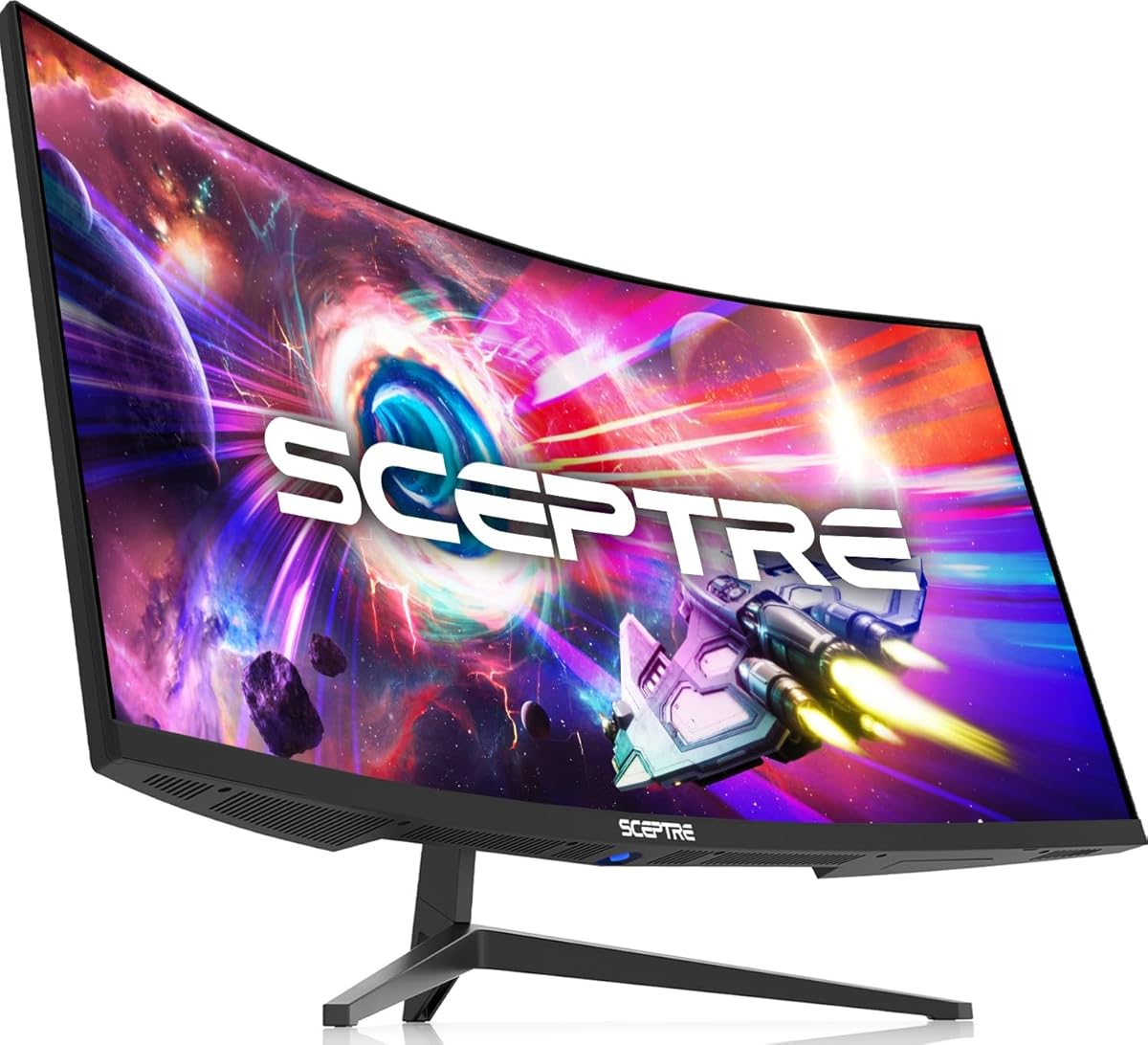
Sceptre C345B-QUT168
4.2Editor score
180Hz refresh rate
1ms response time
Built-in speakers
Finding the right display for your workspace can transform how you work and play. A 34 inch curved ultrawide monitor offers an expansive screen that reduces the need for multiple displays while enhancing immersion. These monitors provide a 21 to 9 aspect ratio that fits more content on screen seamlessly.
We evaluated ten leading models based on panel technology, refresh rates, and connectivity options. Our comparison focuses on real-world performance for productivity tasks like coding and design as well as gaming experiences. Each product was selected for its unique balance of features and value in the current market.
Each pick below highlights specific strengths such as color accuracy or fast response times. You will see detailed specs and pros to help you match a model to your needs. Keep in mind that prices and availability change frequently so verify details before purchasing online today.
4.2Editor score

4.6Editor score

4.6Editor score
As an Amazon Associate we earn from qualifying purchases.
The following table provides a side-by-side look at the core specifications of each monitor. This view helps you quickly identify differences in refresh rates, panel types, and connectivity ports across all ten models listed in this guide.
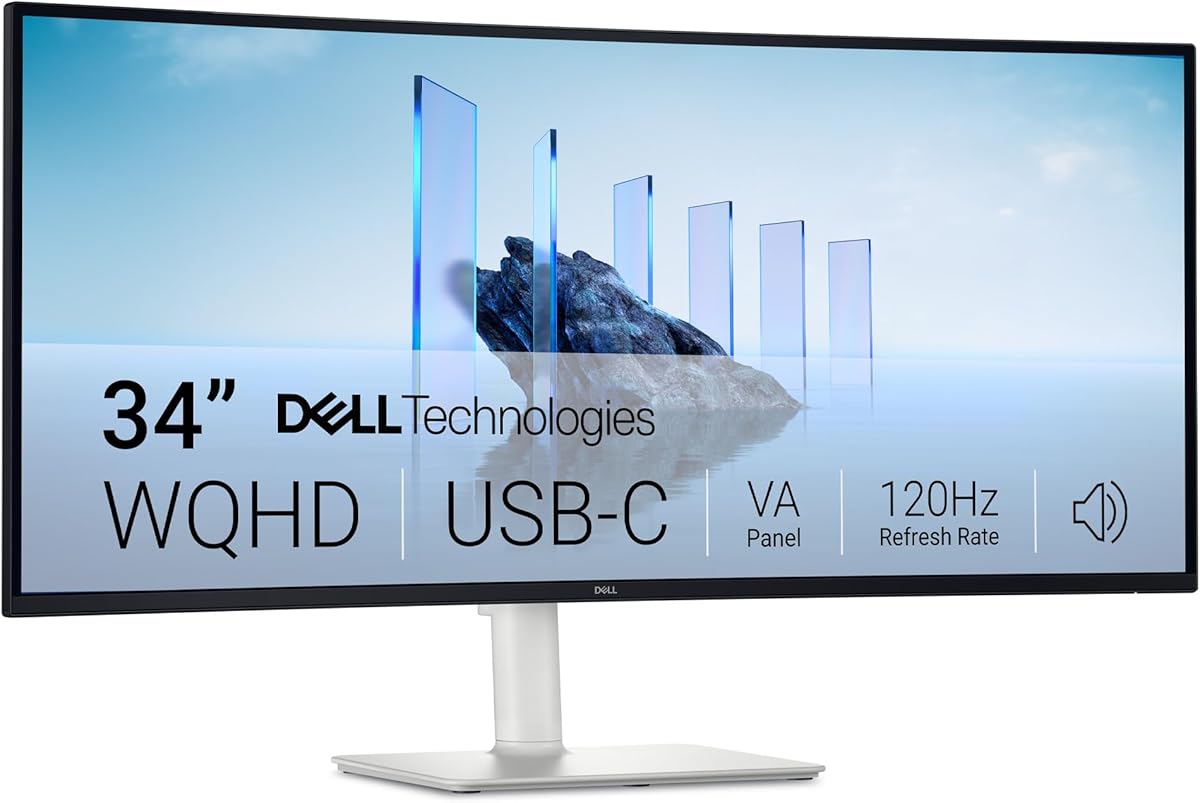


The LG 34WR55QK-B stands out as a top contender for professionals seeking a reliable 34 inch curved ultrawide monitor. With a rating of 4.6 stars, it delivers a balanced mix of display quality and connectivity. The WQHD resolution ensures sharp text and clear images for detailed work.
We may earn a commission when you buy through this link, at no additional cost to you.
Its standout quality is the USB Type-C port which supports up to 65W power delivery. This allows you to connect and charge a laptop with a single cable reducing cable clutter on your desk. The 100Hz refresh rate provides smooth scrolling which is helpful for long work sessions.
While the response time of 5ms is not the fastest available it is sufficient for office tasks and casual media consumption. The stand allows height adjustment which helps maintain a comfortable viewing position throughout the day. The borderless design adds a sleek look to modern workspaces.
This monitor is best suited for office workers and creative professionals who prioritize screen real estate and connectivity. It offers a robust foundation for multitasking without breaking the bank. We recommend it for those who value versatility and ergonomic design in a single display unit.
The USB Type-C connection simplifies your setup by combining data and power delivery into one streamlined cable.
The ergonomic stand lets you tilt and adjust the height to reduce neck strain during extended use.
We may earn a commission when you buy through this link, at no additional cost to you.
The Sceptre C345B-QUT168 offers impressive performance for its price point. With a rating of 4.2 stars it appeals to gamers who want a fast screen without overspending. The 180Hz refresh rate makes motion look fluid and responsive during active gameplay.
We may earn a commission when you buy through this link, at no additional cost to you.
Its 1ms MPRT response time helps eliminate ghosting during fast action scenes. This ensures that quick movements appear crisp and clear which is vital for competitive gaming. The R1500 curve enhances immersion by wrapping the view around your peripheral vision naturally.
Build quality is functional but lacks the premium feel of higher end models. The stand is simple and does not offer height adjustment. However the inclusion of built-in speakers adds convenience for users who do not want external audio gear.
This monitor is ideal for budget-conscious gamers looking for speed and responsiveness. It delivers on core performance metrics like refresh rate and response time effectively. It is a strong choice for secondary gaming setups or entry-level ultrawide experiences.
The high refresh rate ensures that moving objects stay sharp and responsive in fast-paced games.
The 1500R curvature helps focus attention on the screen by matching the natural field of view.
We may earn a commission when you buy through this link, at no additional cost to you.
The Dell S3425DW focuses on user comfort during long work hours. Rated at 4.4 stars it features ComfortView Plus which reduces harmful blue light emissions significantly. This helps lower eye strain when reading text or working on documents for extended periods.
We may earn a commission when you buy through this link, at no additional cost to you.
The VA panel offers a high contrast ratio of 3000:1 making blacks look deeper and images more vivid. This is beneficial for viewing media where dark scenes need to appear distinct. The 120Hz refresh rate ensures smooth motion for both work and casual gaming.
Connectivity includes USB-C for streamlined laptop connections though power delivery limits may apply. The sound system has been re-engineered to provide better output than previous generations. This reduces the need for external speakers in a standard office setup.
This monitor is recommended for professionals who spend most of their day in front of a screen. It prioritizes health features and display clarity over extreme gaming specs. It is a solid investment for a comfortable and reliable workstation display.
ComfortView Plus technology minimizes blue light to protect eyes during prolonged daily usage.
The VA panel provides deep blacks that enhance the realism of images and video content.
We may earn a commission when you buy through this link, at no additional cost to you.
The Samsung Viewfinity S65UA is tailored for creative tasks requiring accurate colors. With a 4.2 rating it supports HDR10 and displays over one billion colors for precise visual output. The 21:9 ultrawide format gives ample space for timelines and toolbars.
We may earn a commission when you buy through this link, at no additional cost to you.
Its USB-C port delivers up to 90W charging which is sufficient for many laptops without needing a separate power adapter. The 1000R curve wraps closely around your field of view which helps keep eyes focused on the center of the screen.
The stand allows height adjustments to suit different seating positions. While it does not swivel it remains stable and functional for a static desk. Eye care features like Eye Save Mode help prevent fatigue during late-night design sessions.
This model fits best with designers and editors who need color fidelity and comfort. It balances professional features with a clean aesthetic suitable for modern offices. It is a reliable choice for those prioritizing visual quality over gaming performance.
HDR10 and one billion color support ensure that your designs look consistent and vibrant.
The 1000R curve matches your eye's natural sight path for a focused viewing experience.
We may earn a commission when you buy through this link, at no additional cost to you.
The LG 34U650A-B uses an IPS panel which offers consistent colors from almost any angle. It holds a 4.4 rating and supports HDR10 for balanced tonal transitions. This is useful when sharing screens during presentations or collaborative work.
We may earn a commission when you buy through this link, at no additional cost to you.
USB-C connectivity provides up to 96W charging which covers high power demands. The built-in speakers with DepthSound deliver full audio reducing clutter on the desk. This feature is often missing in budget monitors but adds real value here.
The stand allows tilt swivel and height adjustment for ergonomic flexibility. The LG Switch app helps manage layouts and video calls efficiently. These tools make navigation easier when using multiple windows for different tasks.
This monitor is recommended for office setups needing color accuracy and audio. It is a versatile choice that supports both work and entertainment needs well. Users who value a clean desk and strong connectivity will appreciate this model.
The IPS panel ensures that colors remain accurate even when viewed from the side.
Built-in speakers with enhanced bass remove the need for extra desktop audio devices.
We may earn a commission when you buy through this link, at no additional cost to you.
The Sceptre C345B-QU240T targets gamers with a 240Hz refresh rate. It earns a 4.4 rating for its ability to render rapid motion smoothly. This makes it suitable for competitive titles where every millisecond counts for reaction time.
We may earn a commission when you buy through this link, at no additional cost to you.
A 1ms response time reduces ghosting and ensures that moving objects stay sharp. The Blue-Light Shift technology helps reduce eye strain during long sessions. These features combine to create a responsive and comfortable gaming environment.
Ports include two HDMI and two DisplayPort inputs for multiple connections. Built-in speakers provide sound without extra cables which simplifies desk organization. The overall package is well suited for a focused gaming station.
This monitor is ideal for gamers prioritizing speed and fluidity. It offers high-end specs at a competitive price point for the category. If smooth performance is your main goal this is a strong candidate to consider.
The 240Hz rate ensures that fast motion is rendered without blur or delay.
Blue-Light Shift minimizes strain so you can game for longer comfortably.
We may earn a commission when you buy through this link, at no additional cost to you.
The msi PRO MP341CQ E12 is designed for flexible setups with VESA mount support. It has a 4.3 rating and features Eye-Q Check for vision assessment. This tool helps you optimize settings to reduce strain during long use.
We may earn a commission when you buy through this link, at no additional cost to you.
The VA panel delivers accurate colors and deep blacks. A 120Hz refresh rate ensures smooth motion across all content. Adaptive-Sync works with GPUs to prevent tearing and stuttering during gaming sessions.
Firmware updates allow performance improvements over time. The stand tilts but you can use an arm for full movement. This makes it a good choice for users who plan to use monitor arms.
This monitor fits well in workspaces that require mounting flexibility. It balances performance with professional features well. It is a strong option for those who want to customize their stand height and angle.
Eye-Q Check helps optimize settings to keep vision comfortable over long hours.
VESA 100mm compatibility lets you use monitor arms for better workspace freedom.
We may earn a commission when you buy through this link, at no additional cost to you.
The LG 34U60ZB-B focuses on media enjoyment with HDR10 support. It holds a 4.1 rating and offers a 120Hz refresh rate for smooth visuals. The Black Stabilizer feature brightens dark scenes which helps in night gaming.
We may earn a commission when you buy through this link, at no additional cost to you.
The 1800R curve follows the natural line of sight to reduce strain. LG Switch allows quick adjustments of brightness and layout using hotkeys. This app helps organize your workflow and gaming setup efficiently.
The stand saves space while still providing tilt and height options. It is well designed for keeping desks neat. The overall package supports both entertainment and work with a balanced feature set.
This monitor is great for streaming and general use. It delivers clear visuals and flexible control options. It is a solid choice for users who want a reliable daily driver.
Black Stabilizer enhances visibility in dark areas without washing out bright colors.
LG Switch app lets you manage display settings quickly from your desktop.
We may earn a commission when you buy through this link, at no additional cost to you.
The Alienware AW3425DWM is a high-end gaming monitor with premium features. It holds a 4.6 rating and offers 180Hz refresh rate. This ensures fluid gameplay with minimal motion blur in fast action.
We may earn a commission when you buy through this link, at no additional cost to you.
VESA DisplayHDR 400 provides better contrast and brightness for media. The hardware-based low blue light protects eyes without altering color balance. This is rare in gaming monitors and adds value for long sessions.
Console mode supports specific gaming inputs for better compatibility. DCI-P3 coverage at 95% ensures vibrant color for creative work too. The 1500R curve enhances immersion during open world exploration.
This model is best for serious gamers and content creators. It balances top-tier gaming specs with accurate color reproduction. It is a premium investment for those who want the best visual experience.
DCI-P3 95% coverage delivers professional quality colors for design and video.
Hardware low blue light helps reduce fatigue while keeping visuals true.
We may earn a commission when you buy through this link, at no additional cost to you.
The Samsung ViewFinity S5 offers a balanced package for daily tasks. It holds a 4.5 rating and supports HDR10 for better image depth. This makes it suitable for streaming and office work alike.
We may earn a commission when you buy through this link, at no additional cost to you.
TUV certified Eye Saver Mode reduces blue light and flicker. This helps prevent eye strain during long workdays. The 120Hz rate ensures that scrolling and gaming stay smooth.
Game Mode adjusts settings for clearer scenes and better detail. AMD FreeSync Premium keeps the GPU and panel in sync. This reduces stuttering and image tearing for a consistent experience.
This monitor is a great choice for general use. It provides a reliable performance with solid eye care features. It fits well into mixed-use setups where quality and comfort are key.
TUV certification ensures that eye comfort features meet recognized safety standards.
AMD FreeSync Premium minimizes tearing for a cleaner look during gameplay.
We may earn a commission when you buy through this link, at no additional cost to you.
Selecting the right monitor requires evaluating several technical factors to ensure it meets your needs. This section breaks down the key elements you should consider before making a purchase.
Resolution determines the sharpness and clarity of text and images. For a 34 inch screen WQHD at 3440 by 1440 is the standard minimum to ensure clear visuals. This resolution provides enough space for multiple windows without losing detail.
Look for monitors that maintain high pixel density to avoid graininess. Higher resolutions support better multitasking and detail work. Ensure your graphics card can support the desired resolution at the target refresh rate.
Refresh rate measured in Hertz determines how many times the screen updates per second. Higher rates like 120Hz or 144Hz provide smoother motion which benefits gaming and scrolling. For office use 75Hz to 100Hz is usually sufficient.
Response time indicates how quickly a pixel changes color. Low response times below 5ms reduce motion blur. This is critical for fast gaming where clarity of moving objects is essential. Look for 1ms or similar specs for competitive play.
Panel types like IPS or VA affect color accuracy and contrast. IPS offers wide viewing angles while VA provides deeper blacks. Curvature enhances immersion and reduces eye strain by following your natural field of sight.
Curvature is measured in R units with lower numbers indicating a tighter curve. A 1000R or 1500R curve wraps around you better. Consider your desk depth and seating position to choose the right curve for comfort.
Ports such as HDMI DisplayPort and USB-C determine how devices connect. USB-C is valuable for laptops as it can handle video data and charging. Multiple inputs allow you to connect several devices simultaneously.
Ensure the monitor supports the bandwidth you need for your setup. Check if audio jacks or USB hubs are included. Adequate connectivity simplifies cable management and improves workflow efficiency.
A stand that adjusts height and tilt reduces neck strain during long sessions. Some stands offer swivel or VESA mount compatibility for custom arms. Stability is key to prevent wobble during touch or gaming.
Check if the stand allows vertical tilt to suit different desk heights. Adjustable bases help you position the screen at eye level. Good ergonomics protect your posture and improve comfort over time.
Features like flicker-free and low blue light protect your vision. Certified technologies from TUV Rheinland ensure these claims are verified. These are crucial for long work hours to prevent headaches and fatigue.
Look for modes that warm the color temperature during night use. Eye care features maintain productivity without sacrificing health. Prioritize monitors with built-in settings to manage light automatically.
For gamers features like FreeSync or G-Sync reduce screen tearing. HDR support adds depth to visuals with brighter highlights. Console modes optimize settings for game input latency.
Check if the monitor supports the specific sync tech for your GPU. High refresh rates paired with adaptive sync make gameplay smoother. Prioritize these features if you play fast-paced action games regularly.
Color gamut coverage like sRGB or DCI-P3 affects how true colors appear. High coverage is essential for photo editing or design work. Look for calibrated panels if color is a priority.
Verify the percentage of coverage in the specifications. Wide gamut ensures vibrant and accurate media viewing. For general use standard coverage is fine but pros should aim for higher accuracy.
When setting up your monitor ensure the curve aligns with your center line for best viewing. Adjust the height so the top of the screen is at or below eye level. This posture helps maintain comfort during extended work periods.
Clean the screen using a soft microfiber cloth to remove dust and smudges. Avoid harsh chemicals that could damage the coating. For tough spots use a slightly damp cloth and wipe gently without applying too much pressure.
Update your graphics drivers and monitor firmware periodically. These updates improve compatibility and performance over time. Adjust brightness settings based on ambient light to reduce strain on your eyes daily.
A curved monitor can be better for productivity if you sit close to the screen. The curve helps your eyes move across the display more naturally reducing fatigue. However for very large desks or dual monitor setups a flat screen might be easier to manage visually.
The 21:9 aspect ratio means the screen is wider than a standard 16:9 monitor. This extra width allows you to place two full windows side by side without shrinking them. It is highly effective for multitasking and comparing documents.
Yes you need a graphics card that can handle the resolution. The 3440 by 1440 resolution requires more power than 1080p. For smooth performance especially at higher refresh rates ensure your GPU supports the output and has enough VRAM.
Most of these monitors support HDMI which MacBooks use. Some models with USB-C can connect directly. If your Mac needs DisplayPort or Thunderbolt you may require an adapter or cable to ensure full resolution and refresh rate.
A 34 inch monitor typically needs about three feet of width on your desk. The base may be wide so check the stand dimensions. Ensure you have enough depth to maintain a comfortable viewing distance.
HDR10 improves contrast by making brights brighter and darks darker. On monitors it enhances the look of supported content. While not essential for all tasks it adds depth to media viewing and supported gaming experiences.
Some consoles support ultrawide outputs while others do not. Check if your console is compatible with 21:9 aspect ratios. If supported it offers a wider field of view which can be immersive in open world games.
Most modern monitors last between five to seven years of regular use. The panel quality and usage habits affect this duration. Proper care like avoiding physical pressure and managing brightness helps extend the life.
The LG 34WR55QK-B and Alienware AW3425DWM stand out as top choices depending on your needs. The LG model excels in productivity with strong ergonomics while the Alienware delivers premium gaming performance. Both options provide a significant upgrade over standard displays.
Prioritize refresh rate if you game often and color accuracy if you design. Eye care features are essential for those working long hours daily. Select a model that balances these needs with your budget constraints effectively.
Prices for monitors change frequently so always check current listings before buying. Verify the warranty and return policy to ensure satisfaction. Taking time to match these specs to your workflow will bring lasting value.