
TobenONE 18-in-1 DisplayLink Docking Station
4.5Editor score
Four HDMI 4K outputs
120W power adapter
Eighteen total ports
This guide compares the top docking stations with quad monitor support for productivity, offering detailed specs and reviews to help you choose the right
Finding a docking station with quad monitor support is essential for professionals who need maximum screen real estate. These devices allow you to connect multiple displays through a single cable, transforming your laptop into a full desktop workstation without clutter.
We evaluated ten top-rated models based on display capabilities, connectivity options, power delivery, and overall build quality. Our analysis focuses on how well each station handles four 4K screens while maintaining stable performance and offering versatile ports for peripherals.
Each pick below highlights specific strengths, from budget-friendly options to premium Thunderbolt solutions. Prices and availability can change frequently, so please verify current details on the product pages before making your final purchase decision today.
4.5Editor score

4.7Editor score
4.4Editor score
The following table provides a side-by-side overview of all ten models reviewed in this guide. Compare their display limits, power output, port counts, and compatibility to find the station that best fits your specific workflow needs.

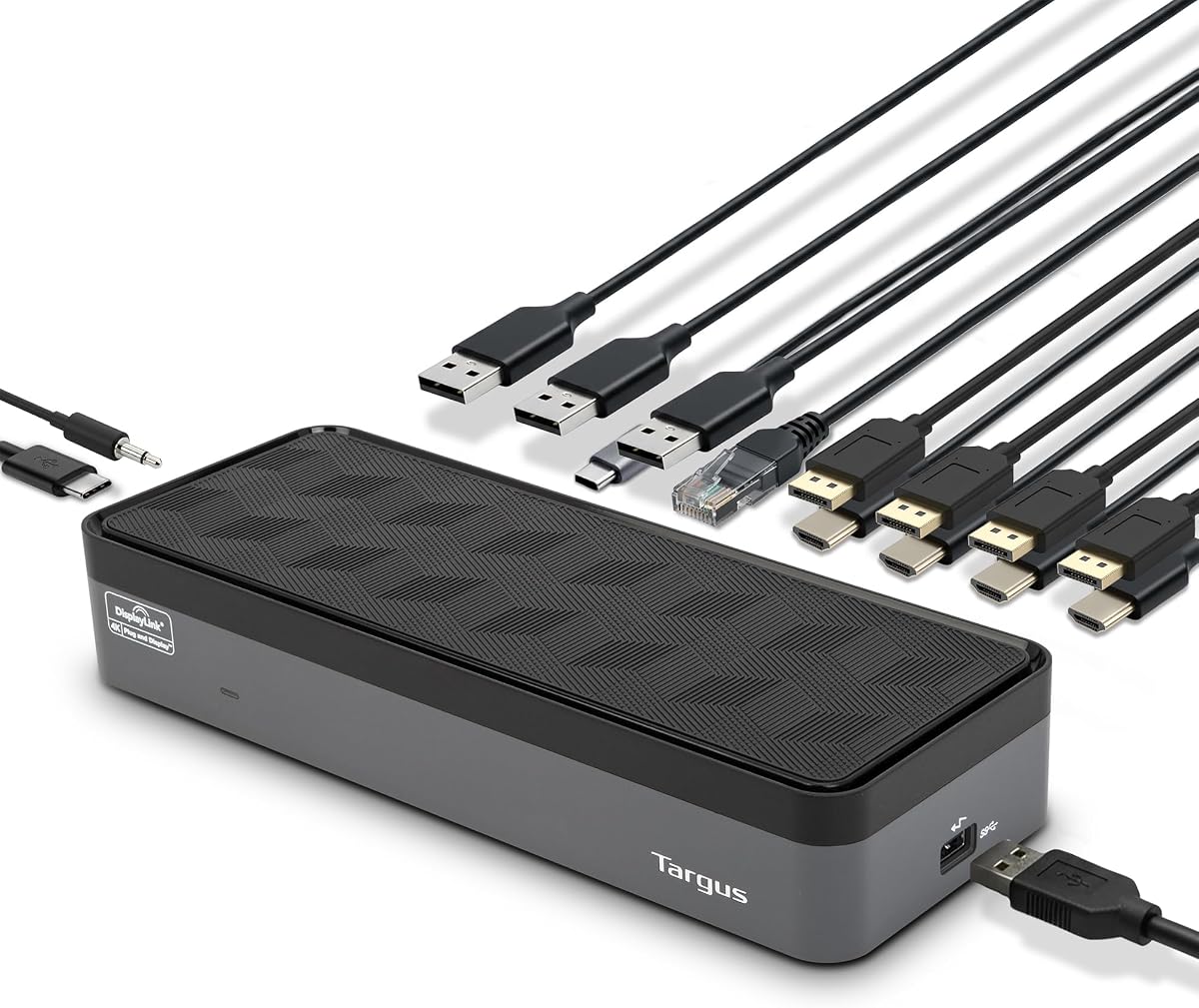
The Targus USB-C Universal Quad 4K Docking Station stands out as a robust solution for professionals needing extensive display capabilities. With a strong rating from users, it delivers reliable performance for connecting up to four 4K UHD monitors or a single 5K display seamlessly.
We may earn a commission when you buy through this link, at no additional cost to you.
Its key strength lies in the powerful 100W Power Delivery capability, ensuring your laptop stays charged while driving multiple screens. The inclusion of five USB ports allows you to connect all essential peripherals like keyboards, mice, and external drives without clutter.
While it offers broad compatibility through Alt Mode support, some users may need to install specific drivers for legacy laptops. The price point reflects its premium build and extensive features, which justifies the investment for those requiring a stable, high-performance workstation.
This station is ideal for creative professionals, financial traders, or anyone needing multiple high-resolution screens. Its integrated lock slot adds security for office environments, making it a versatile choice for both home and corporate workstations looking for reliability.
You can connect four 4K monitors or one 5K screen depending on your workflow needs.
The integrated lock slot helps secure the dock against theft in public or shared office spaces.
We may earn a commission when you buy through this link, at no additional cost to you.
The TobenONE DisplayLink Docking Station offers an impressive array of ports and features at a competitive price point. It supports three or four 4K displays depending on your operating system, making it a versatile choice for power users on a budget.
We may earn a commission when you buy through this link, at no additional cost to you.
Its eighteen ports provide extensive connectivity options, including multiple HDMI and DisplayPort connections alongside USB-C and USB-A slots. The included 120W power adapter ensures your laptop and phone charge efficiently without needing extra bricks on your desk.
While it performs well on Windows and macOS, users on Linux systems should note that it is not supported. Installation of the DisplayLink driver is necessary to unlock full functionality, which adds a minor step to the setup process.
This dock is perfect for remote workers transitioning to a dual or triple monitor setup without breaking the bank. The lifetime technical support and compatibility guarantee provide peace of mind for those investing in a long-term workstation solution.
With eighteen ports, you can connect virtually any peripheral you need without additional hubs.
The 120W adapter charges your laptop and phone simultaneously, keeping your workspace tidy.
We may earn a commission when you buy through this link, at no additional cost to you.
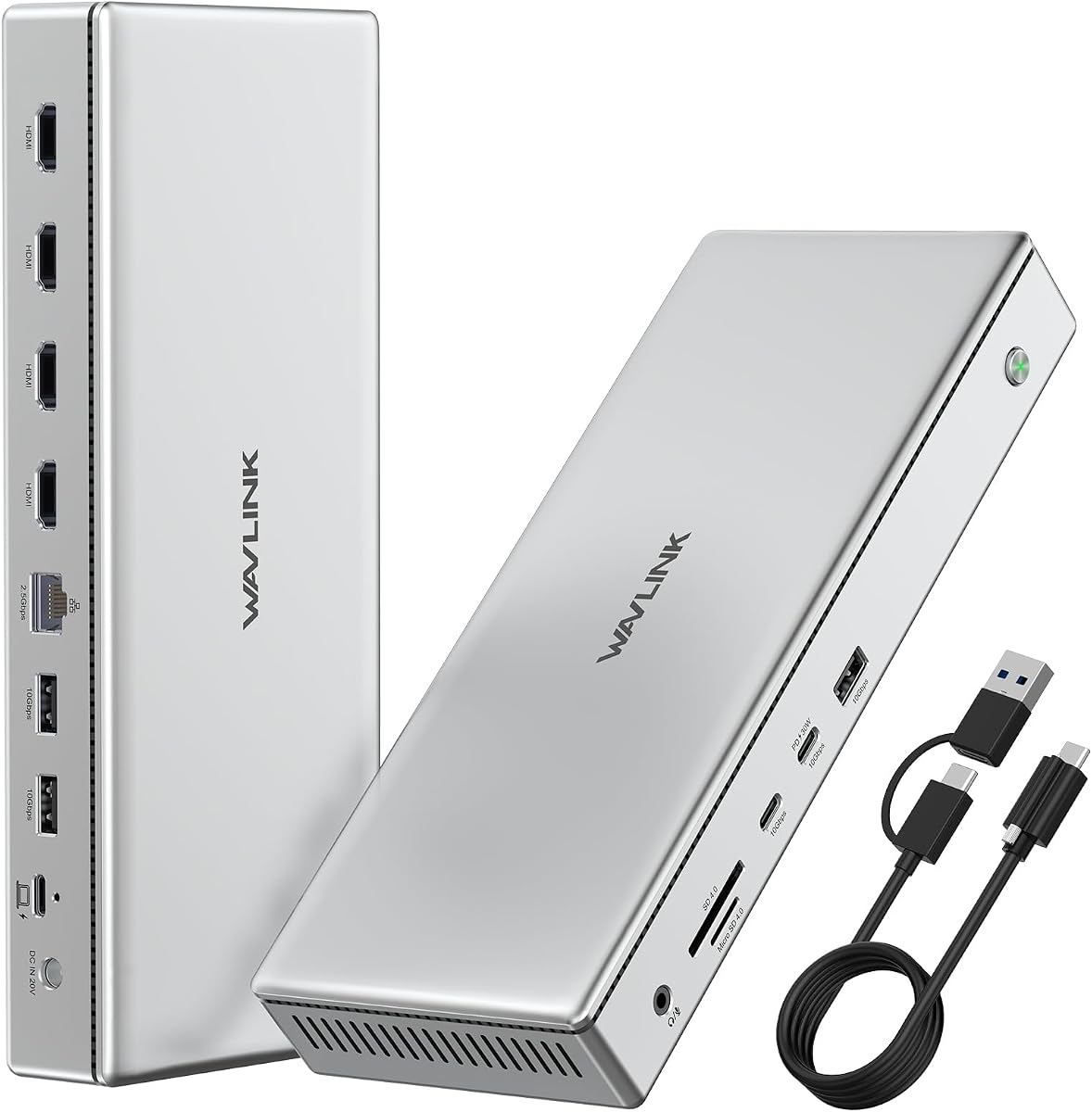
The WAVLINK Pro Docking Station delivers solid performance for users needing four 4K displays via HDMI outputs. It uses DisplayLink technology to break native display limits on macOS, allowing for extensive screen real estate on compatible devices.
We may earn a commission when you buy through this link, at no additional cost to you.
Its 160W power adapter is a standout feature, offering more than enough power to charge high-end laptops while driving multiple screens. The 2.5G Ethernet port ensures stable and fast network connections for bandwidth-intensive tasks.
While the aluminum build looks premium and dissipates heat well, users should ensure they have the latest drivers installed. macOS users may be limited to three displays, so check your specific setup requirements before purchasing.
This dock is particularly well-suited for video editors and designers who need fast data transfers and multiple monitors. The combination of SD card readers and robust charging makes it a comprehensive hub for creative professionals.
The durable aluminum housing protects internal components and helps manage heat during heavy use.
The 2.5G Ethernet port provides faster wired internet speeds than standard Gigabit connections.
We may earn a commission when you buy through this link, at no additional cost to you.
The StarTech Thunderbolt 5 Universal Docking Station is a top-tier solution for users with the latest Thunderbolt hardware. It offers true driverless plug-and-play performance, making it ideal for IT environments where setup time matters.
We may earn a commission when you buy through this link, at no additional cost to you.
It supports advanced display configurations including dual 6K on Apple Silicon Macs and quad 4K on Windows systems. This flexibility ensures you get the most out of high-end GPUs without needing complex configuration software.
While the price is higher than DisplayLink alternatives, the reliability and speed of Thunderbolt 5 justify the cost for professionals. The integrated security lock helps protect your investment in shared or public workspaces effectively.
This station is best for users who demand the highest performance and compatibility with future-proof technologies. Its rigorous testing and free lifetime technical support make it a dependable choice for mission-critical workflows.
True driverless performance means no software installation is required to get started immediately.
Thunderbolt 5 support ensures compatibility with the fastest peripherals and monitors available.
We may earn a commission when you buy through this link, at no additional cost to you.
The TobenONE 18-in-1 DisplayLink Docking Station offers significant value for those needing four HDMI displays. It supports 4K at 60Hz on Windows, providing a smooth visual experience for trading, coding, or creative work.
We may earn a commission when you buy through this link, at no additional cost to you.
With eighteen ports available, you can connect all your peripherals directly without needing separate hubs. The included 120W power adapter simplifies your desk setup by charging your laptop and phone simultaneously.
Linux and Unix systems are not supported, and Netflix streaming may be blocked due to DRM restrictions. However, for most professional workflows, these limitations do not impact overall functionality or performance significantly.
This dock is ideal for users who prioritize connectivity and affordability. The dedicated support team ensures that any setup issues are resolved quickly, making it a reliable choice for home office and enterprise environments.
Eighteen ports mean you can connect nearly any device directly without additional adapters.
A single 120W adapter handles both laptop and peripheral charging effectively.
We may earn a commission when you buy through this link, at no additional cost to you.
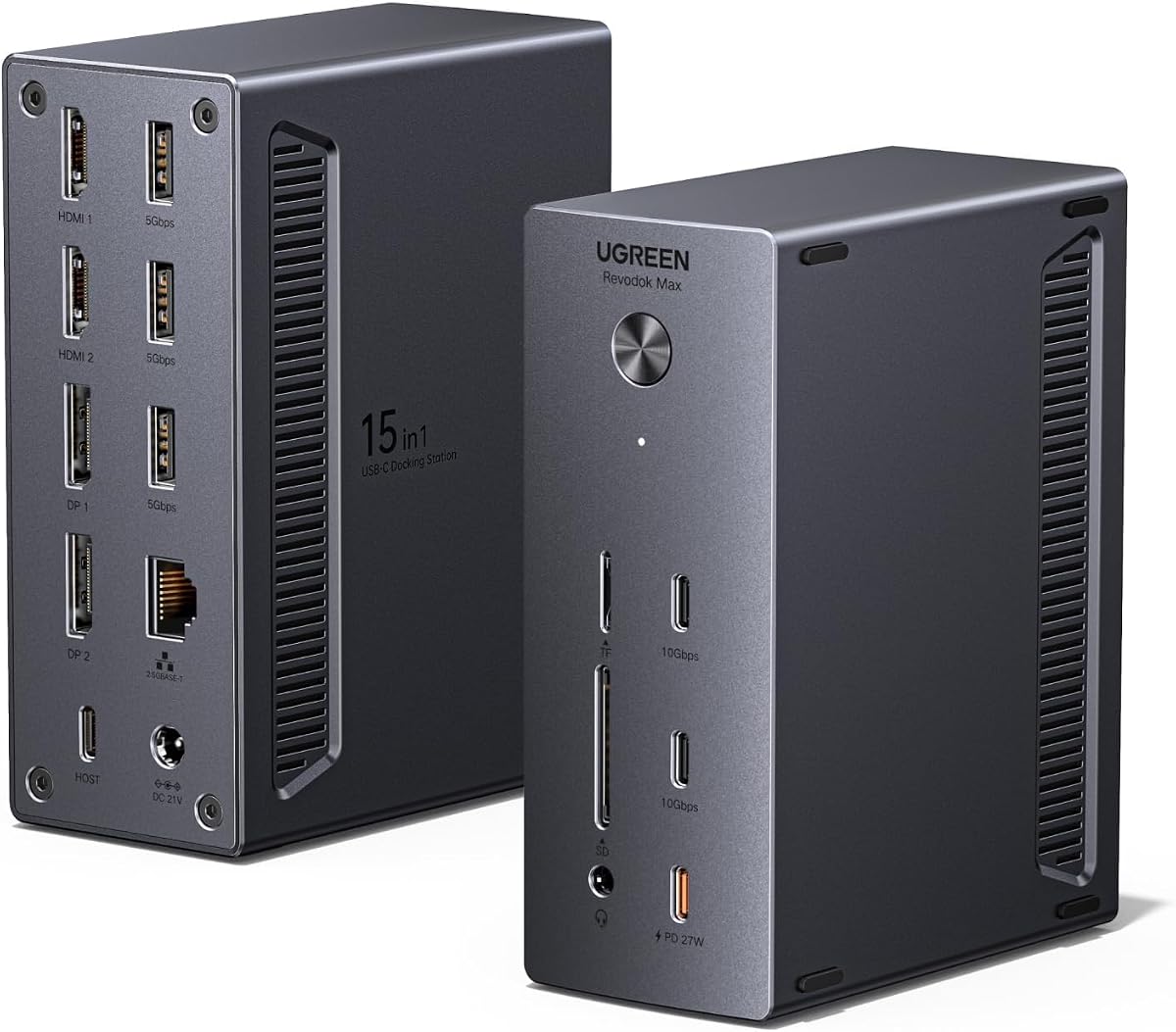
The UGREEN USB-C DisplayLink Docking Station is highly rated for its compatibility with Mac and Windows laptops. It supports up to four 4K displays at 60Hz, offering excellent visual clarity for professional work.
We may earn a commission when you buy through this link, at no additional cost to you.
Its fifteen ports cover all essential connectivity needs, including SD card slots and a 2.5G Ethernet port. The included USB-C cable simplifies setup, ensuring you have everything needed right out of the box.
Dynamic power sharing means charging power may shift between laptop and peripheral ports based on usage. While this is efficient, it requires monitoring to ensure your laptop gets enough power during heavy loads.
This dock is perfect for creative professionals who need fast data transfer and multiple screens. The inclusion of a driver installation flash drive ensures that setting up the device is straightforward and accessible.
Support for 8K displays future-proofs your setup for upcoming high-resolution monitors.
The 2.5G Ethernet port provides fast, reliable wired internet for large file transfers.
We may earn a commission when you buy through this link, at no additional cost to you.
The Targus USB-C Universal Docking Station excels in supporting a wide range of laptops including legacy models. Its Alt Mode compatibility ensures you can use it with various brands without needing special adapters.
We may earn a commission when you buy through this link, at no additional cost to you.
It provides four 4K display outputs for an immersive workspace, plus five USB ports for connecting peripherals. The 100W power delivery keeps your laptop charged while you work on demanding tasks.
While the included tips for legacy hosts are helpful, some users may find the price higher than DisplayLink alternatives. However, the reliability and brand reputation often justify the investment for enterprise environments.
This dock is suitable for businesses with mixed fleets of devices needing a uniform workstation solution. The integrated security slot helps protect against theft in open office layouts effectively.
Support for major brands ensures it works with your existing laptop without issues.
The lock slot helps secure the hardware in shared or public office spaces.
We may earn a commission when you buy through this link, at no additional cost to you.
The TobenONE DisplayLink Docking Station is well-suited for video production workflows requiring multiple 4K screens. It allows you to monitor feeds and timelines simultaneously across three or four displays.
We may earn a commission when you buy through this link, at no additional cost to you.
Eighteen ports ensure you can connect cameras, hard drives, and audio interfaces all at once. The 120W power adapter provides enough power to keep your laptop running during long editing sessions.
Linux support is not available, and keeping drivers updated is crucial for optimal performance. For Windows and macOS users, however, it offers a robust solution for complex visual workflows.
This dock is ideal for content creators and video editors looking to expand their workstation efficiently. The lifetime technical support provides peace of mind when managing critical production environments.
Multiple high-resolution screens help streamline complex editing and production tasks.
Extensive port options allow direct connection of cameras and storage devices.
We may earn a commission when you buy through this link, at no additional cost to you.
The StarTech Thunderbolt 5 Universal Docking Station is designed specifically for IT professionals managing enterprise environments. Its driverless setup reduces help desk tickets significantly, saving time during rollouts.
We may earn a commission when you buy through this link, at no additional cost to you.
It supports both macOS and Windows seamlessly, ensuring consistent behavior across different device types. The integrated lock slots help secure hardware in high-traffic areas effectively.
While the cost is high, the reliability and support make it a smart investment for businesses. Rigorous testing ensures it performs well with major laptop brands in real-world scenarios.
This dock is ideal for organizations deploying workstations to large teams. The cross-platform performance and free technical support make it a dependable choice for long-term use.
Driverless installation means faster setup times and fewer support tickets for your team.
Integrated lock slots provide physical security for hardware in public or shared spaces.
We may earn a commission when you buy through this link, at no additional cost to you.
The UGREEN USB-C DisplayLink Docking Station offers a balanced solution for hybrid workers who switch between home and office. It supports four 4K displays ensuring you have enough screen space for productivity.
We may earn a commission when you buy through this link, at no additional cost to you.
With 150W power capability, it charges your laptop even under heavy load. The 2.5G Ethernet port ensures a stable connection for video calls and cloud work.
Driver installation is required initially, but once set up, the station runs smoothly on both macOS and Windows. Dynamic power sharing is efficient but requires attention to ensure all devices get enough juice.
This dock is perfect for professionals needing a reliable, one-cable solution. The included cable and flash drive make setup easy, allowing you to focus on work rather than technical hurdles.
A single cable setup allows you to switch workspaces without reconnecting peripherals manually.
Gigabit Ethernet ensures your video calls stay stable even on heavy network traffic.
We may earn a commission when you buy through this link, at no additional cost to you.
Choosing the right docking station requires careful consideration of your laptop model, display needs, and power requirements. Below are key factors to evaluate before making a purchase decision.
Ensure the dock supports your laptop operating system for multiple displays. Macs often have hardware limits that require DisplayLink software to exceed two screens. Windows laptops with Thunderbolt support can often drive more monitors natively.
Check specific OS limitations before buying to avoid unexpected issues with your desired screen count.
Look for docks that support 4K at 60Hz for crisp visuals and smooth scrolling. Some models may offer 8K support which is beneficial for future-proofing high-resolution workflows. Refresh rates affect motion clarity in productivity tasks.
Prioritize 60Hz refresh rates to avoid lag when moving windows across multiple screens.
Select a dock with sufficient wattage to charge your laptop while connected. Most laptops need 60W to 100W to charge properly under load. Higher power docks help maintain performance during intensive tasks.
Verify the wattage matches or exceeds your laptop charger requirements to ensure reliable charging.
Evaluate the number and type of ports available for your peripherals. You may need USB-A for legacy devices and USB-C for modern storage. Ethernet ports are vital for stable wired networking in offices.
Count your required devices to ensure the dock has enough ports without extra hubs.
Consider whether the dock requires driver installation for full functionality. Thunderbolt 5 is generally driverless on Mac and Windows. DisplayLink docks need drivers for extended displays which adds setup time.
Choose driverless solutions if you need minimal setup or IT environments needing quick deployment.
Solid aluminum housings help dissipate heat generated by multiple high-bandwidth connections. Plastic enclosures may overheat under heavy load. Good cooling ensures longevity and stable performance over time.
Look for metal builds to maintain reliability when driving multiple high-resolution displays simultaneously.
Determine your budget and balance features with cost. Premium Thunderbolt docks offer higher speeds at a higher price. DisplayLink docks are often more affordable but may have software dependencies.
Invest in what matches your current needs rather than overpaying for unused capabilities.
Understand if your laptop supports Thunderbolt 3 or 5 versus standard USB-C. Thunderbolt offers faster data and video bandwidth. Standard USB-C may limit resolution and refresh rates depending on the dock.
Match the dock technology to your laptop port capabilities to avoid bottlenecks.
Connect the docking station to your laptop using the included USB-C or Thunderbolt cable. Ensure the power adapter is plugged in to supply sufficient power for all connected devices. This setup ensures stable performance for multiple monitors.
Install any required drivers if your dock supports DisplayLink. Windows and Mac may need specific software updates to enable extended displays. Check the manufacturer website for the latest versions to ensure compatibility.
Keep the dock in a well-ventilated area to prevent overheating. Avoid stacking heavy objects on top of it during use. Regularly clean dust from ports and vents to maintain long-term reliability.
Yes, but macOS often limits native display support to two screens. You will need a DisplayLink dock with drivers to connect three or four monitors. Always verify your specific Mac model compatibility before purchasing to ensure expected performance.
No, the docking station usually provides power to your laptop and peripherals. Monitors have their own power supplies but you do not need extra adapters for the hub itself. Check the dock's power delivery to ensure your laptop charges properly.
Driverless docks rely on Thunderbolt standards which are natively supported by the operating system. DisplayLink docks use software to compress video data which requires installation. Driver installation adds setup time but allows more flexibility in display counts.
Check your laptop's user manual for port specifications like Thunderbolt or USB-C. Look for supported resolutions and maximum external display counts. Most modern business laptops support three or four screens when paired with the right docking station.
If your laptop needs more power than the dock provides, it may charge slowly or not at all while in use. This can drain the battery during intensive tasks. Ensure the dock output meets your laptop adapter requirements for stable operation.
You can connect gaming monitors but refresh rates might be limited to 60Hz on some models. Check if the dock supports high refresh rates for smoother gaming visuals. Thunderbolt docks generally offer better support for gaming performance.
Yes, most docking stations are designed for continuous operation. They have built-in protection against power surges and overheating. Just ensure proper ventilation to maintain longevity and safe usage.
We reviewed ten top docking stations that offer quad monitor support for professionals needing expanded screen real estate. From the high-performance StarTech Thunderbolt 5 to the versatile Targus and UGREEN models, there is a solution for every workflow.
Prioritize display resolution and power delivery that match your laptop capabilities. Ensure the dock supports your operating system natively or has necessary drivers. Choosing a reliable brand with good technical support will save time in the long run.
Remember that prices and availability can change frequently on Amazon. Verify the current specifications and reviews before finalizing your purchase to get the best value for your investment today.